
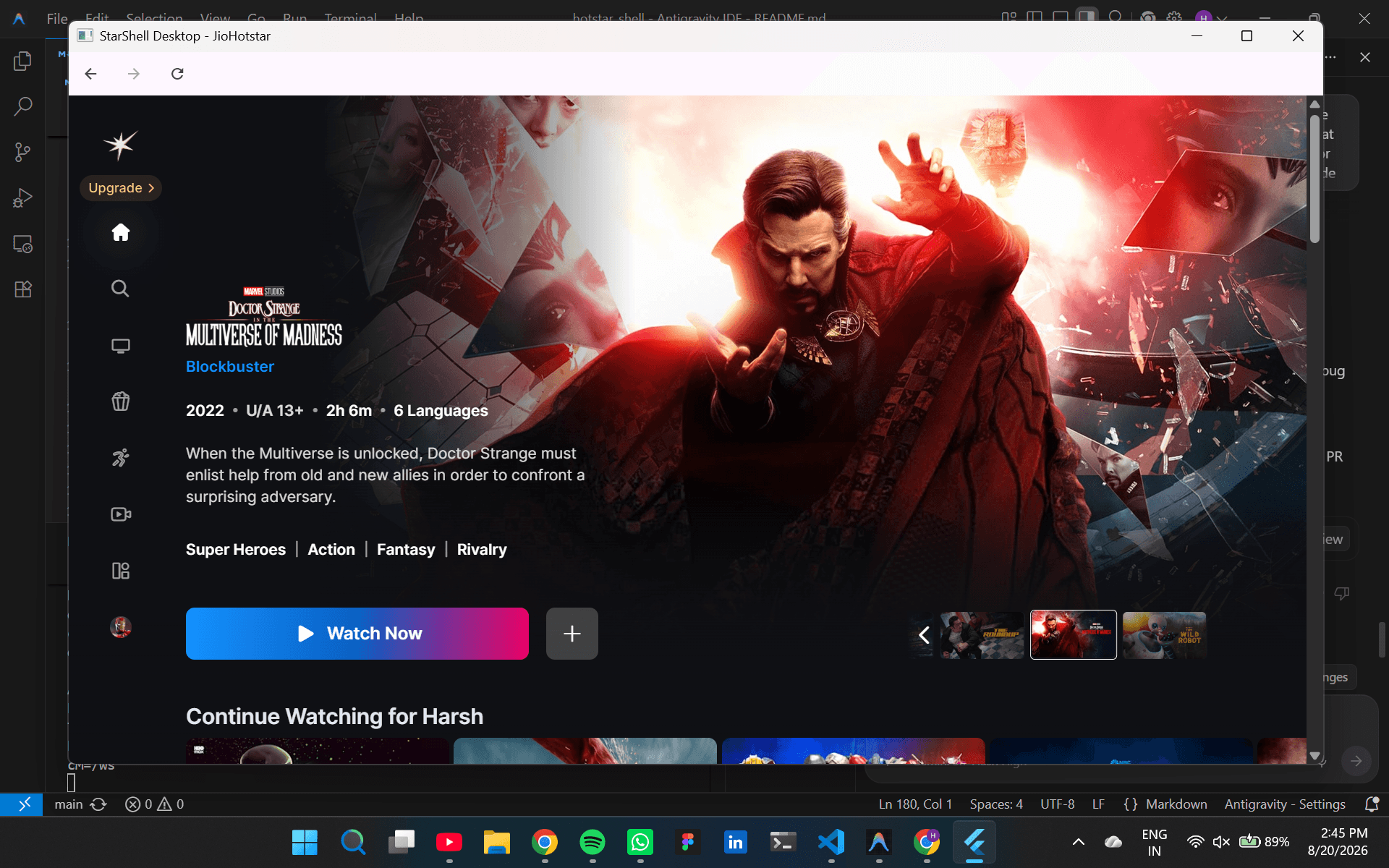
One day I decided to watch an X-Men movie.
I opened Chrome, entered the Hotstar URL and started waiting.
And waiting.
The website simply wasn't loading. Eventually, I got an alert saying that JioHotstar was not responding.
I got frustrated, logged into another Google account, opened Hotstar again, and finally started watching the movie.
But this process was annoying.
Every time I wanted to watch something, I had to switch my Google account, reopen the website and go through the whole process again.
I even searched the Microsoft Store for an official Hotstar application for Windows.
I couldn't find one.
And that was when an idea hit me:
What if I just built a desktop wrapper around the JioHotstar website?
Not another streaming service.
Not a clone of Hotstar.
Not something that downloads or proxies their content.
Just a small Windows application that essentially gives me a dedicated desktop environment for the website.
A Few Months Earlier, I Wouldn't Have Attempted This
A few months ago, building something like this would probably have intimidated me.
I didn't know C++ well enough to confidently build a Windows .exe, and I had very little experience with desktop application development.
But things had changed.
I had learned Flutter.
I had already built applications with Flutter for Android, understood the basic Flutter architecture, and had started becoming comfortable with the idea that the same framework could target multiple platforms.
So I thought:
Why not try it?
I decided to turn this into a small engineering adventure.
And there was another condition.
I didn't want to build the project entirely by myself.
I wanted to see how far I could take a real project by combining my own understanding with AI-assisted development.
Defining the Problem First
Before writing code, I discussed the idea with ChatGPT.
One thing I was very clear about from the beginning was that I didn't want to bypass JioHotstar's protected service.
The objective was much simpler:
Official JioHotstar
↓
Windows WebView
↓
StarShell Desktop
The official website would still handle:
Authentication
Sessions
Subscriptions
Content licensing
Video playback
DRM
Communication with JioHotstar's servers
My application would simply provide the desktop shell around it.
That distinction became extremely important later.
Because, as it turns out, displaying a normal website inside a desktop application is one thing.
Displaying DRM-protected video inside that application is another.
Giving AI the Context
Instead of asking an AI coding agent something vague like:
"Build me a Hotstar desktop app."
I wanted the agent to understand the project before touching the code.
So I created a small documentation system containing:
PRD.md
ARCHITECTURE.md
TASKS.md
API.md
AGENTS.md
These documents described the product requirements, architecture, implementation tasks, integration boundaries and coding constraints.
I then gave the entire context to Google's Antigravity and asked it to work through the project incrementally.
The idea was simple:
Me
↓
Product Idea
↓
Requirements
↓
Technical Decisions
↓
AI Coding Agent
↓
Code
↓
Debugging
↓
Refactoring
↓
Testing
↓
Working Application
I wasn't trying to replace engineering judgment with AI.
I wanted to use AI as a pair programmer while I remained responsible for understanding what was actually being built.
The First Approach
The first approach was fairly straightforward.
Flutter would provide the application UI, and a WebView would render JioHotstar inside the Flutter widget tree.
I initially used the webview_windows approach.
Conceptually, the architecture looked like this:
Flutter Window
↓
Flutter Widget Tree
↓
WebView
↓
Microsoft Edge WebView2
↓
JioHotstar
This seemed perfect.
The website loaded.
The UI worked.
Navigation worked.
The page looked normal.
Then I tried to actually play a movie.
And that's where things became interesting.
The Black Video Problem
The WebView was behaving strangely.
It wasn't completely broken.
In fact, most of the player appeared to work.
I could see things like:
The playback controls
The timeline
The loading indicator
Thumbnails
Audio
But the actual video area was just...
black.
The player could behave as though playback was happening, while the video surface itself wasn't appearing in the Flutter texture.
This was the first major lesson of the project:
A web page rendering correctly does not mean every type of web content can be composed through the same rendering path.
The problem wasn't that JioHotstar itself couldn't play the video.
The browser could.
The problem was the way I was asking WebView2 to present that protected video inside Flutter's rendering pipeline.
Why DRM Changed the Problem
Modern streaming services don't simply send a normal .mp4 file to the browser.
Protected services use technologies such as Encrypted Media Extensions (EME) and DRM systems to ensure that protected content is decrypted and presented through approved playback paths.
That introduces an important distinction:
Normal Web Content
HTML
↓
Chromium
↓
Flutter Texture
↓
Screen
Protected Video
HTML
↓
Chromium
↓
DRM / CDM
↓
Protected Video Surface
↓
Display
My first implementation was effectively asking the protected video surface to participate in an off-screen texture composition path.
That was the wrong rendering architecture for this workload.
The important point here is that I didn't need to "solve DRM."
I needed to stop interfering with the browser's normal protected playback path.
What I Learned From the Failure
This was probably the most interesting technical discovery of the project.
My initial assumption was:
If the WebView can render the website, Flutter should be able to render whatever the WebView renders.
That assumption is not universally true.
Protected media can have different rendering requirements from ordinary DOM content.
The fact that:
Website → works
↓
Controls → work
↓
Audio → works
↓
Video → black
was actually useful information.
It told me that the problem wasn't authentication.
It wasn't the website.
It wasn't the video itself.
It was the presentation path.
So instead of trying to bypass DRM, I changed the architecture.
Approach Two: Native WebView Window
The next approach was to use a plugin that could render WebView2 directly into a native Windows window.
I moved towards desktop_webview_window.
The architecture became:
Flutter Application
↓
Flutter Window
+
Native WebView Window
↓
WebView2
↓
JioHotstar
↓
Video
This solved the biggest problem.
Video playback worked.
The protected video could now use the browser's native rendering path instead of being composed into an off-screen Flutter texture.
But I had created a new problem.
Two Windows
Suddenly I had two windows.
One belonged to Flutter.
The other belonged to the native WebView.
It looked something like:
Flutter Window
↓
StarShell Controls
+
Native WebView Window
↓
JioHotstar
↓
Video
That's obviously not what I wanted.
The application was supposed to feel like one desktop application.
There was another issue too.
The native WebView window was interacting directly with the Windows message pump and foreground focus, which made the Flutter control window behave poorly.
So I had solved video rendering but made the application experience worse.
The Final Architecture
This led to the final approach:
Why keep the Flutter window visible at all?
Flutter was still useful to manage the application and its logic, but I didn't necessarily need Flutter's rendered surface to be the surface displaying the protected video.
So I moved towards a single-window native launcher architecture.
The idea became:
StarShell Process
↓
Flutter Host
↓
Hidden Flutter Window
↓
Native Win32 Window
↓
Microsoft WebView2
↓
JioHotstar
The Flutter host window is hidden.
A native Win32 window hosts WebView2 directly.
WebView2 then gets to use its normal Chromium/Windows rendering path.
This gave me what I actually wanted:
StarShell Desktop
↓
JioHotstar
↓
Video
One process.
One visible window.
Native browser rendering.
No Flutter texture sitting between the protected video and the display.
And Then It Worked
This was the point where the project finally started feeling real.
The official website loaded.
Login worked.
The movie played.
The video wasn't black anymore.
And most importantly, I hadn't had to bypass the service's DRM.
The browser was still doing what the browser is supposed to do.
JioHotstar
↓
WebView2 / Chromium
↓
DRM-Protected Playback Pipeline
↓
Windows Native Rendering
↓
Monitor
StarShell wasn't decrypting the movie.
It wasn't downloading the movie.
It wasn't proxying the movie.
It wasn't extracting the movie.
It was simply providing a different application window around the official web experience.
DRM Compliance Wasn't Just a Legal Checkbox
One of the things I found particularly interesting while building this was that DRM compliance became an architectural constraint, not merely a disclaimer in the README.
The easiest temptation when something doesn't render is:
"Can we somehow get the video data ourselves?"
That would completely change the nature of the project.
Instead, the correct engineering question was:
"How do we let the official browser environment handle the protected content normally?"
That distinction kept the project simple.
The final architecture leaves:
Authentication → JioHotstar
Session management → browser/WebView
Content licensing → JioHotstar
DRM → browser's supported DRM stack
Video decoding → supported Windows/browser pipeline
Content delivery → official JioHotstar servers
StarShell essentially stays at the UI/application-shell layer.
What StarShell Actually Does
At its core, the project is surprisingly small in concept.
StarShell Desktop
↓
Windows Application Shell
↓
WebView2 / Chromium
↓
Official JioHotstar
The application provides a dedicated Windows experience around the official website.
The website still provides the actual streaming service.
That means the project doesn't need:
A streaming backend
A database
Redis
Firebase
A custom authentication server
A media server
An API proxy
For this particular project, less architecture was actually better architecture.
The Role of Flutter
This project also changed the way I think about Flutter.
When I started learning Flutter, I mostly associated it with mobile applications.
Android.
iOS.
Widgets.
Navigation.
State management.
But Flutter's Windows support opened up another possibility.
The Flutter side gave me:
Application lifecycle
Project structure
UI development
Dart
Cross-platform abstractions
A familiar development environment
And Windows gave me access to lower-level native concepts when I actually needed them.
Eventually I ended up working around concepts I hadn't expected to touch when I started:
Win32 windows
HWND
WebView2
Chromium
Windows message handling
Native window focus
Direct rendering
Hardware-accelerated video
Protected media playback
That was probably more valuable to me than the wrapper itself.
The AI Pair-Programming Experiment
This project was also an experiment in AI-assisted software development.
I didn't ask AI to simply generate a giant codebase.
I gave it the context first.
The project documentation described:
PRD.md
↓
What are we building?
ARCHITECTURE.md
↓
How should it be structured?
TASKS.md
↓
What should be implemented next?
API.md
↓
What are the integration boundaries?
AGENTS.md
↓
What rules must the coding agent follow?
Then Antigravity worked through the implementation.
This was especially useful when we reached the WebView rendering problem.
The important part wasn't simply asking AI:
"Fix the black screen."
It was understanding the symptoms, identifying the rendering architecture involved, testing another approach, seeing what broke, and then changing the architecture again.
AI helped significantly with the exploration and implementation, but I still had to understand what the application was actually doing.
Otherwise, it would have been very easy to blindly accept a "fix" that compromised the project's original goal.
The Three Architectures
Looking back, the project went through three distinct stages.
Approach 1 — Flutter Texture
JioHotstar
↓
WebView2
↓
Off-Screen Rendering
↓
Flutter Texture
↓
Flutter Window
Result:
Normal web content worked, but protected video remained black.
Approach 2 — Separate Native WebView Window
Flutter Window
+
Native WebView2 Window
↓
JioHotstar
↓
Video
Result:
Protected video worked, but the application became a two-window experience and introduced focus/message-pump problems.
Approach 3 — Single Native WebView Window
Flutter Host
↓
Hidden Window
↓
Native Win32 Window
↓
WebView2
↓
JioHotstar
Result:
One visible window with the official browser rendering path handling playback.
This became the final architecture.
What I Would Have Done Differently
If I were starting the project again, I would investigate the WebView rendering architecture much earlier.
My initial mental model was:
WebView = browser inside Flutter.
But that's an oversimplification.
A WebView isn't just a rectangle containing HTML.
Underneath it is an entire browser engine with:
GPU compositing
Browser processes
Renderer processes
Media pipelines
DRM components
Native Windows integration
Hardware acceleration
Once protected media enters the picture, those details suddenly matter.
I also would have started with a tiny proof of concept:
Open JioHotstar
↓
Login
↓
Play DRM-Protected Video
↓
Verify Rendering
before spending time on the surrounding UI.
That would have exposed the rendering constraint much earlier.
What I Learned
This little project taught me several things that I don't think I would have learned from another CRUD application.
1. Desktop development is different
Mobile Flutter abstracts away a lot of platform complexity.
Windows sometimes lets you go much closer to the operating system.
2. WebViews are more complicated than they look
A WebView isn't simply an iframe with a Flutter widget around it.
Its rendering model matters.
3. DRM affects architecture
Protected media isn't just another webpage element.
The rendering pipeline itself can become part of the security model.
4. The correct solution isn't always a workaround
When the first approach failed, the answer wasn't to defeat the protection.
It was to stop using the rendering path that was incompatible with protected playback.
5. AI is most useful when you give it context
The documentation files made a huge difference.
Instead of:
"Build this."
the agent got:
"Here's what we're building, why we're building it, how it should work, what constraints exist and what order you should implement it in."
That made the AI much more useful as an engineering partner.
Where StarShell Is Now
The current project provides an unofficial Windows desktop wrapper around the official JioHotstar web experience.
It uses Flutter for the application and Windows/WebView2 for the actual web experience.
The final result is designed around:
A single visible desktop window
Native WebView2 rendering
Hardware-accelerated playback
Normal official authentication
Direct communication between the browser environment and official service
No custom streaming backend
No DRM circumvention
The project is open source, and the entire development journey is available in the repository.
It's not complete yet. I'm still working on it and giving the app its final touches.
GitHub: https://github.com/harshverdhan312/StarShell
Final Thoughts
What started as:
"Hotstar isn't loading in Chrome and I don't want to keep switching Google accounts."
turned into a surprisingly interesting Windows engineering project.
I started with a simple idea:
Website
↓
Put it in an app
↓
Done.
It obviously wasn't that simple.
I ended up learning about WebView2, Windows native windows, browser rendering pipelines, hardware acceleration, protected media, DRM constraints and AI-assisted development.
And that's exactly why I like side projects.
They don't necessarily need to solve a massive problem.
Sometimes you just get annoyed by something on a random Tuesday, think:
"How hard could it be to build this myself?"
And then you find out.
Pretty hard.
But also pretty fun.
StarShell Desktop
StarShell Desktop is an unofficial open-source project and is not affiliated with, sponsored by, or endorsed by Jio, Star, Disney, JioHotstar, or their subsidiaries.
The project does not bypass or circumvent DRM, does not extract protected media, and does not operate a proxy or streaming backend. It relies on the official web experience and the browser's supported protected-media playback mechanisms.
You can find the complete source code, architecture documentation and implementation history in the project's GitHub repository.
The final architecture keeps protected playback on the browser’s supported rendering path, which makes the three-stage evolution from Flutter texture to a single native WebView window the clearest way to explain why the design changed.